
Slack is one of the most popular team communication platforms in the world, and one of its most fun features is the ability to use custom emojis. Whether you want to add your company logo, an inside joke, or a quirky reaction image, custom emojis can make your workspace feel more personal and engaging. Here’s everything you need to know about adding and removing custom emojis on Slack.
What Are Custom Emojis on Slack?
Custom emojis are user uploaded images that any member of your Slack workspace can use in messages and reactions. Unlike the default emoji library, custom emojis are unique to your workspace. They can be photos, illustrations, animated GIFs, or any image you’d like to turn into a reaction. Many teams use them to celebrate wins, reinforce company culture, or just keep things light-hearted.
Step by Step: How to Add a Custom Emoji on Slack
Adding a custom emoji is surprisingly simple, and you don’t need to be a workspace admin to do it. As long as your workspace settings allow members to upload emojis.
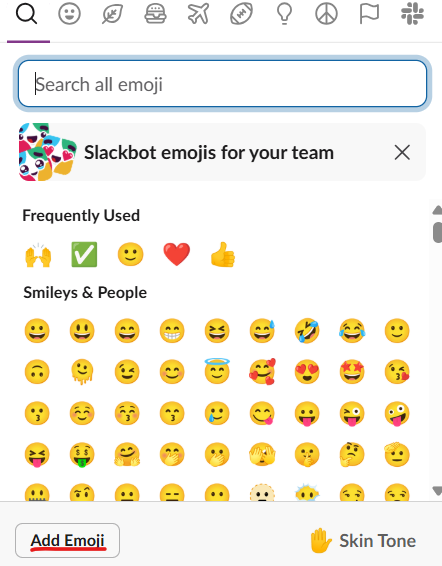
Step 1: Open your Slack workspace in a browser or the desktop app.
Step 2: Click on a random chat.
Step 3: Click on “Add emoji”, then, you’ll be prompted to upload an image file. Slack supports PNG, JPG, and GIF formats. For best results, use a square image under 128KB. Animated GIFs are supported and can add a fun touch to your emoji collection.
Step 5: Give your emoji a name. This is the text shortcode that users will type between colons (e.g., :partyblob:). Keep it short, memorable, and easy to type.
Step 6: Click “Save.” Your new emoji is now live and available to everyone in the workspace immediately.
A few tips to keep in mind: transparent backgrounds work best for clean-looking emojis, and square images at 128×128 pixels are the ideal size. Avoid names that conflict with existing default Slack emojis to prevent confusion.
If you are not sure about what to upload, I downloaded my emojis from this website: https://slackmojis.com/
How to Delete Custom Emojis on Slack
Over time, your workspace may accumulate emojis that are outdated, redundant, or simply no longer relevant. Cleaning them up keeps your emoji library organized and easy to navigate.
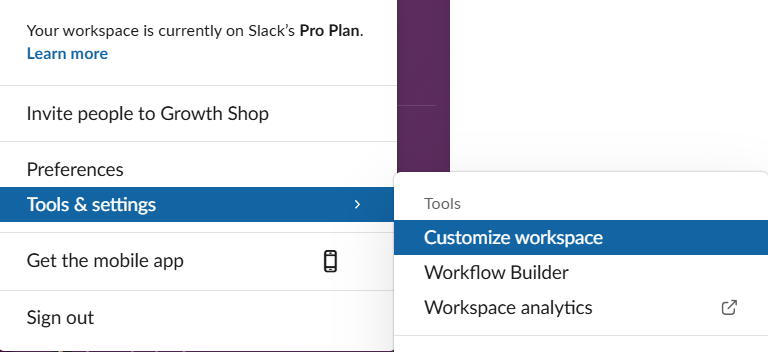
Step 1: Click on your Organization´s name.
Step 2: Go to tools & Settings
Step 3: Select Customize Workspace
Step 4: A tab will be opened showing the emojis with who created them. Then, confirm the emoji you created and delete it. The emoji will be permanently removed from the workspace.
Keep in mind that only the person who originally uploaded the emoji can delete it. If you need to remove an emoji you didn’t upload, you’ll need to reach out to an admin with the necessary permissions.
Final Thoughts
Custom emojis are a small but mighty way to personalize your Slack workspace and foster a stronger team culture. Whether you’re adding a branded emoji for your company or deleting an old one that’s past its prime, the process is quick and straightforward. Since the question: how to add custom emojis on Slack is answered, you can start building your custom emoji library today.