
If you’ve ever wanted your Samsung tablet to feel more like a laptop, Samsung DeX mode is the feature you’ve been waiting for. Short for “Desktop Experience,” DeX transforms your tablet’s interface into something that looks and behaves much like a traditional desktop operating system — complete with a taskbar, resizable windows, and a familiar drag-and-drop workflow. Whether you’re a student, a remote worker, or just someone who wants to squeeze more productivity out of their device, understanding DeX can seriously change how you use your tablet.
In this blog, you will understand what is DeX mode on Samsung tablet, the benefits and how to enable it.
What Exactly Is Samsung DeX Mode?
Samsung DeX is a desktop style interface built directly into compatible Samsung Galaxy tablets. When activated, it replaces the standard Android home screen with a desktop layout that supports multiple open windows, keyboard shortcuts, and mouse or trackpad input. Rather than juggling between full-screen apps, you can run several applications side by side. Just like you would on a Windows or macOS machine.
DeX was originally launched for Samsung Galaxy smartphones in 2017, requiring a dedicated dock and an external monitor. On newer Galaxy tablets like the Tab S8, S9, and S10 series, DeX can be used directly on the tablet’s own screen. No extra hardware required, although connecting a keyboard and mouse makes the experience significantly more powerful.
What Is the Benefit of Samsung DeX Mode?
The biggest benefit of Samsung DeX mode is productivity. The desktop environment lets you multitask in a way that Android’s standard interface simply doesn’t support as smoothly. You can open a spreadsheet, a browser, and a messaging app all at once, resizing and arranging windows however you like.
For professionals who travel or work remotely, DeX can function as a genuine laptop replacement for day-to-day tasks. Pair your tablet with a Bluetooth keyboard and mouse, and you have a fully functional workstation in your bag. Apps like Microsoft Office, Google Workspace, and even certain creative tools behave more like their desktop counterparts in DeX mode, offering wider toolbars and more interface real estate.
Another benefit is continuity. If you’re already using your Galaxy tablet as your main device, switching into DeX doesn’t require a separate machine or operating system. Everything stays in one place: Your files, your apps, your accounts. Just presented in a more desktop friendly way.
How to Open Samsung DeX on Tablet
Opening Samsung DeX on your tablet is straightforward. There are a 3 methods depending on your preference:
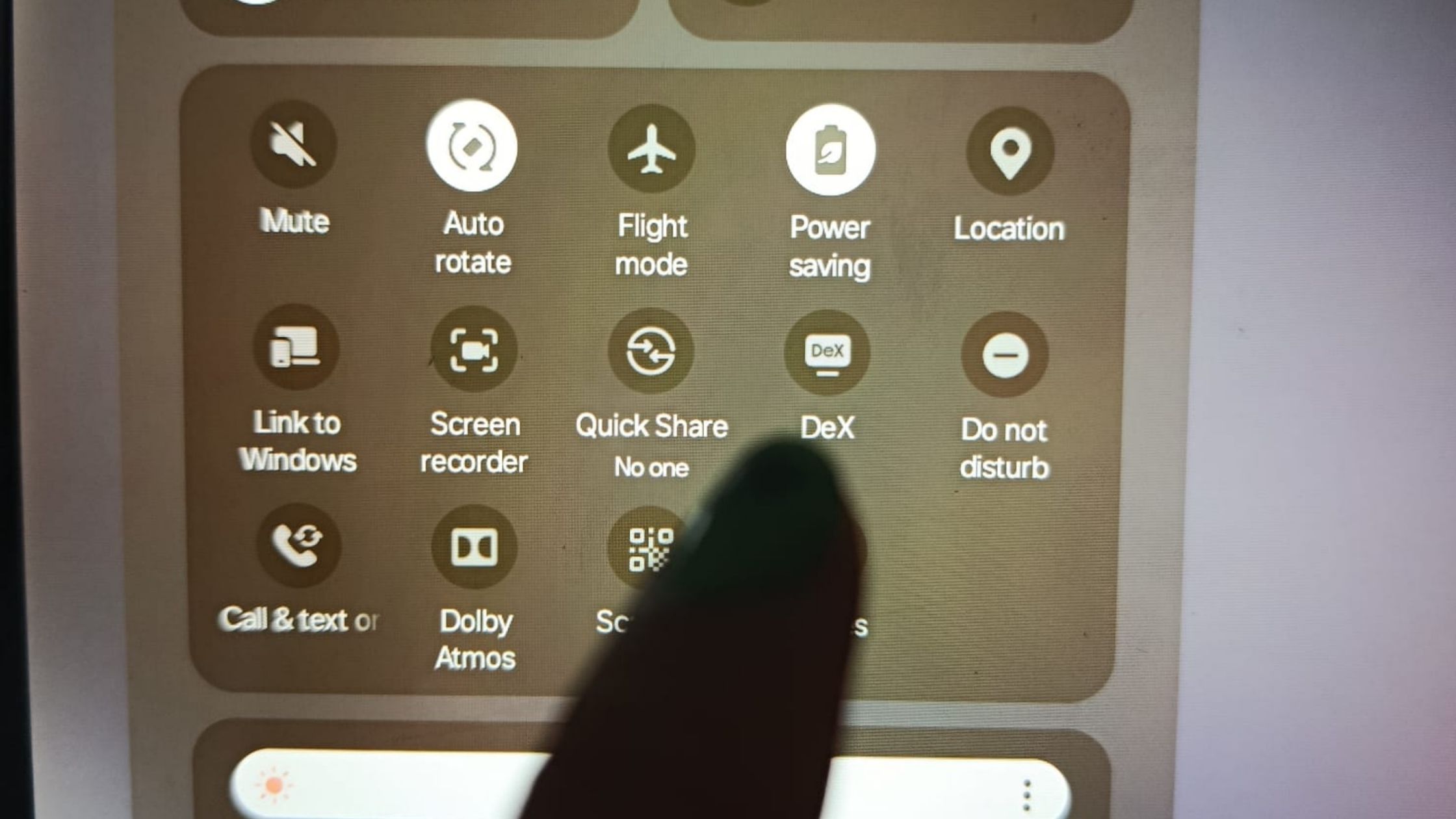
Method 1 – Quick Settings Panel: Swipe down from the top of the screen to open the notification shade, then swipe down again to expand the Quick Settings panel. Look for the “DeX” tile and tap it. Your screen will immediately transition to the desktop interface.
Method 2 – Settings Menu: Go to Settings, then scroll down to “Connected Devices” or “Advanced Features” (this varies slightly by model and software version). From there, select “Samsung DeX” and toggle it on.
Method 3 – Keyboard Connection: If you connect a physical keyboard to your tablet either via USB-C or Bluetooth, some Galaxy models will automatically prompt you to switch into DeX mode.
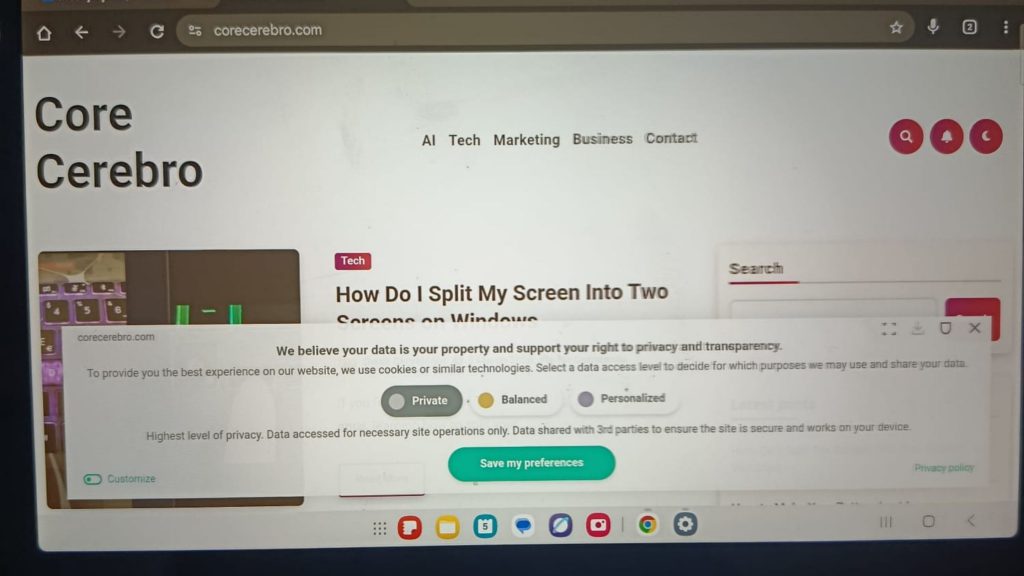
Once in DeX, you’ll see a taskbar at the bottom of the screen, a desktop area for shortcuts, and a fully resizable app window system.
How to Turn Off Desktop Mode on Samsung Tablet
Exiting DeX mode is just as simple as entering it. To turn off desktop mode on your Samsung tablet, swipe down the Quick Settings panel and tap the “DeX” tile again to toggle it off. Alternatively, look for the DeX icon in the taskbar at the bottom of the screen and tap it. You’ll usually see an option to “Exit DeX.” Your tablet will return to its standard Android interface immediately, without losing any of your work.
If DeX is launching automatically when you connect a keyboard and you’d prefer it not to, head to Settings > Advanced Features > Samsung DeX and disable the option to launch DeX automatically on connection.
What Is the Difference Between Screen Mirroring and DeX?
This is one of the most common points of confusion for new users. Screen mirroring and Samsung DeX are two very different features, even though both can involve connecting your tablet to an external display.
Screen mirroring simply duplicates whatever is on your tablet’s screen onto a TV or monitor. What you see on the tablet is exactly what appears on the big screen — same layout, same orientation, same interface. It’s useful for presentations or watching media on a larger display, but it doesn’t change how the device works.
Samsung DeX, on the other hand, creates an entirely separate desktop environment when connected to an external display. Your tablet can continue showing one thing (like a YouTube video or a notes app) while the connected monitor displays a full desktop with different open windows. They are independent workspaces running simultaneously, which is far more powerful than simple mirroring.
In short, screen mirroring copies your screen, while DeX extends and transforms it.
Is Samsung DeX Free to Use?
Yes, Samsung DeX is completely free to use. It comes built into compatible Samsung Galaxy tablets as part of the operating system. There are no subscriptions, no one-time fees, and no premium tiers to unlock. As long as your device supports DeX (which includes the Galaxy Tab S6 and all newer S-series and A-series Pro tablets), you can use it at no additional cost.
The only investment you might want to make is optional hardware: a Bluetooth or USB-C keyboard, a mouse, and possibly a monitor if you want the full desktop setup. But the software itself costs nothing.
Conclusion
Samsung DeX mode is one of the most underrated features on Galaxy tablets. It bridges the gap between tablet convenience and laptop functionality without requiring you to carry two devices. Whether you’re drafting documents, managing emails, or jumping between multiple apps, DeX turns your tablet into a genuinely capable workstation. And since it’s free, there’s no reason not to give it a try.
If you want to read more post like this, Core Cerebro can be your choice.