
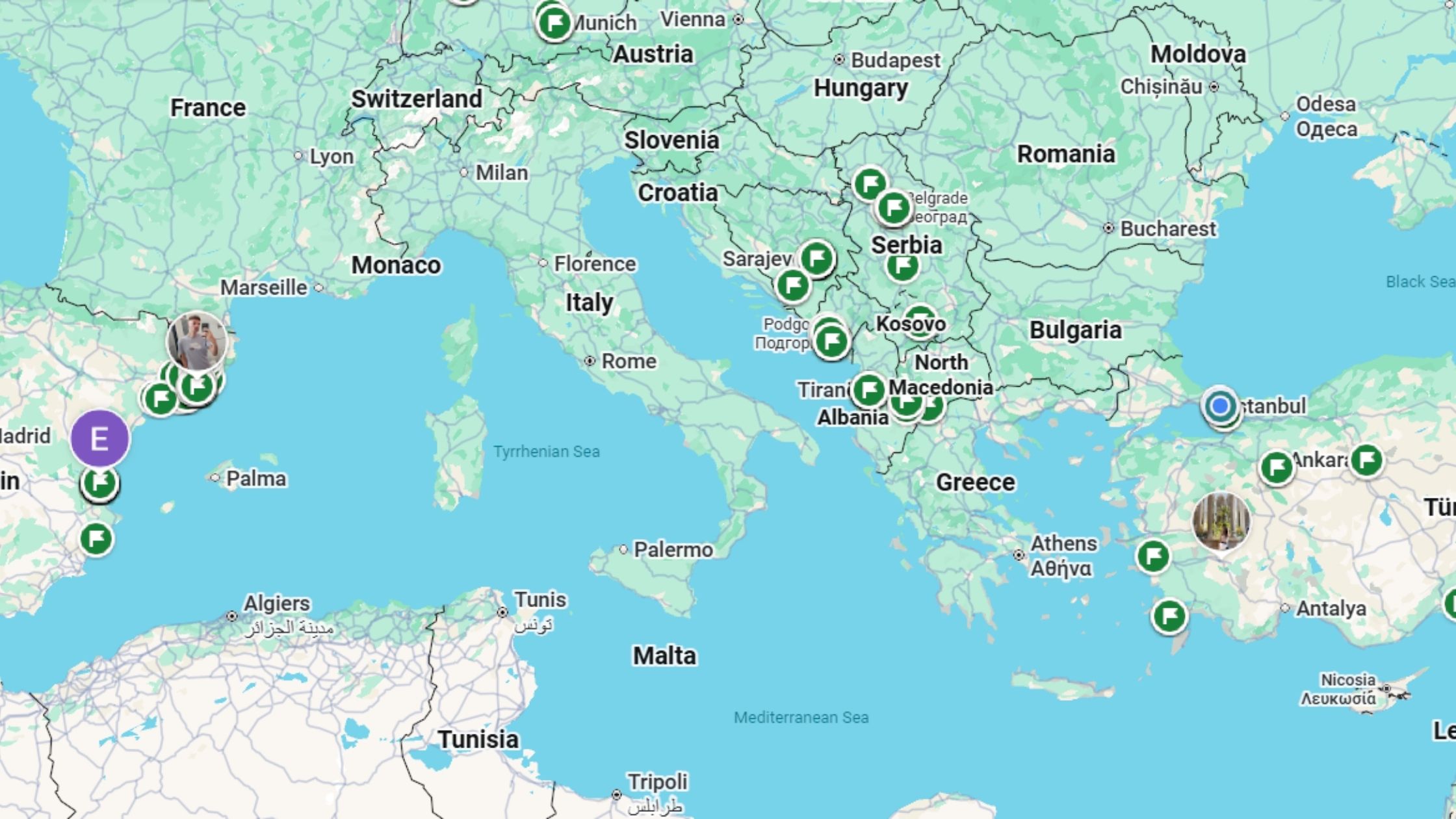
Whether you want to keep tabs on a family member’s commute, let your partner know you got home safe, or coordinate with a travel group, knowing how to permanently share location on Google Maps is one of the most useful things you can do with your phone. Google Maps makes this surprisingly straightforward but there are a few gotchas that trip people up, especially on Android.
In this guide, we walk you through every method, on every platform, with troubleshooting steps for the most common issues. If you have also run into problems with Google Maps share location permanently not working, we cover that too.
What Does It Mean to Permanently Share Your Location on Google Maps?
Google Maps offers two modes of location sharing: a timed share (for a set number of hours or minutes) and an indefinite share that continues until you manually turn it off. The second option is what most people mean when they search for how to permanently share location on Google Maps — it stays active across app restarts, phone reboots, and app updates, until you or the recipient ends it.
This is different from sharing a static pin of a place. Real-time location sharing shows your live position as you move, updating continuously on the other person’s Google Maps app or Google account page.
How to Permanently Share Location on Google Maps (Android)
Android is the most common platform for Google Maps, and the process is native and deeply integrated. Here is the step-by-step process for how to share location on Android permanently.
Step 1: Open Google Maps and Access Your Profile
Open the Google Maps app on your Android device. Tap your profile picture or initial in the top-right corner of the screen. A menu will appear — select “Location sharing.”
Step 2: Tap ‘New Share’
On the Location Sharing screen, tap the blue “New share” button. If you have previously shared your location with someone, they will appear here.
Step 3: Set Duration to ‘Until You Turn This Off’
A duration selector will appear. By default it may show 1 hour. Tap the “+” button or drag the slider all the way up until the option reads “Until you turn this off.” This is the key step for permanent sharing — it will not expire automatically.
Step 4: Choose Who to Share With
You can share with people in a few ways:
- Google Contacts: Search for a contact by name. They receive a notification and can see your location in their Google Maps app.
- Messaging apps: Tap the share icon to send a link via WhatsApp, SMS, Telegram, or any app installed on your phone.
- Copy link: Copy the location-sharing link and paste it anywhere.
After selecting your contact or sharing method, tap “Share.” The sharing session is now active and will continue indefinitely.
Pro Tip
For the best experience with permanent location sharing on Android, make sure Google Maps has “Always” location permission in your phone’s settings (Settings > Apps > Google Maps > Permissions > Location > Allow all the time). Without this, the app may stop sharing when your screen is off.
How to Share Location on iPhone via Google Maps
The Google Maps location sharing feature works on iPhone too, though there are a few differences from Android. Here is how to set it up on iOS.
- Open Google Maps on your iPhone.
- Tap your profile photo in the top-right corner.
- Select “Location sharing” from the menu.
- Tap “New share.”
- Set the duration to “Until you turn this off.”
- Select a contact or tap the share icon to send the link.
- Tap “Share” to confirm.
Important iPhone note: iOS is more restrictive about background location access than Android. Go to Settings > Privacy & Security > Location Services > Google Maps and select “Always” to ensure uninterrupted sharing. If you select “While Using the App,” location updates may pause when you close the app.
How to View Someone Else’s Shared Location
When someone shares their Google Maps location with you, you will receive a notification (if they shared via your Google account). Here is how to view it:
- Open Google Maps.
- Tap your profile picture, then “Location sharing.”
- Under “Shared with you,” you will see anyone who is sharing their location with you.
- Tap their name to see their real-time position on the map.
If someone shared via a link rather than a direct Google account share, open the link in a browser or in the Google Maps app to see their location.
How to Share Location on Android Permanently: Extra Tips
If you want to make sure your Android location share truly stays “on” 24/7, there are a few additional settings worth checking. Many users find that Google Maps share location permanently stops updating due to battery optimization settings — not a bug in Google Maps itself.
| Setting | What to Do |
| Location Permission | Settings > Apps > Google Maps > Permissions > Location > Allow all the time |
| Battery Optimization | Settings > Battery > Battery Optimization > Google Maps > Don’t optimize |
| Background Data | Settings > Apps > Google Maps > Mobile Data > Allow background data usage |
| App Battery Usage | Settings > Apps > Google Maps > Battery > Unrestricted (on Samsung/Pixel) |
| Google Account Sync | Ensure you are signed into the same Google account on both devices |
How to Stop Sharing Your Location on Google Maps
Stopping location sharing is just as important as starting it. Here is how to turn it off:
- Open Google Maps and tap your profile picture.
- Tap “Location sharing.”
- Under “Sharing with,” find the person you are sharing with.
- Tap their name, then tap “Stop.”
- Confirm when prompted.
You can also stop sharing directly from the notification Google Maps keeps in your notification bar while sharing is active — just tap it and select “Stop sharing.”
Google Maps Share Location Permanently Not Working — Fixes
If you have set up permanent location sharing but it keeps stopping, or the other person says they can no longer see your location, here are the most common causes and fixes.
1. Battery Optimization is Killing Google Maps
This is the number one reason Google Maps share location permanently stops working on Android. Go to Settings > Battery > Battery Optimization, find Google Maps, and set it to “Don’t optimize” or “Unrestricted.” On Samsung devices this is found under Device Care > Battery > Background Usage Limits.
2. Location Permission is Set to ‘While Using the App’ Only
If you only allowed location access while the app is open, sharing stops as soon as you switch apps or lock your screen. Change this to “Always allow” in your location settings.
3. Google Maps App is Out of Date
Older versions of Google Maps have had bugs with persistent location sharing. Open the Play Store or App Store, search for Google Maps, and update to the latest version.
4. The Recipient Does Not Have a Google Account Signed In
If you shared via a Google account but the recipient is not signed in on their device, they may not receive or see the location. Ask them to check their Google Maps > Location sharing > Shared with you screen.
5. Internet or GPS Signal Issues
Location sharing requires both an active internet connection and GPS access. If you are indoors or in an area with poor signal, updates may be delayed. This is a display issue on the recipient’s side, not a sharing failure — the location will update once signal is restored.
6. Re-enable Sharing as a Last Resort
If nothing works, stop the sharing session entirely, restart both phones, then set it up again from scratch. This resolves most persistent sync issues.
Privacy Considerations When Sharing Your Location Permanently
Permanently sharing your location is a significant privacy decision. Here is what to keep in mind:
- You are always in control: You can stop sharing at any time without notifying the other person.
- Google Maps does not notify you when someone checks your location — only when a new share session is created.
- Shared location data is processed through Google’s servers, meaning it is subject to Google’s privacy policy.
- Consider who you share with carefully. Permanent sharing is best reserved for close family or trusted partners.
- Use Google’s “About this sharing” feature to review the terms of any active share.
Frequently Asked Questions
Does Google Maps share location work when my phone is off?
No. Location sharing requires your phone to be on and connected to the internet. If your phone is off or in airplane mode, your last known location will be shown until your phone reconnects.
Can I share my location with someone who does not have Google Maps?
Yes. You can share a link that opens in any web browser, even on devices without Google Maps installed. The recipient just needs internet access.
Will the person know when I stop sharing?
Google Maps does not send a notification when you stop sharing. The other person’s app will simply stop showing your location, though they may notice your pin has disappeared.
How many people can I share my location with at once?
You can share your location with multiple people simultaneously. Each share is independent — you can stop sharing with one person without affecting others.
Is Google Maps location sharing accurate?
Google Maps uses a combination of GPS, Wi-Fi, and mobile network data to determine location. In open outdoor areas, accuracy is typically within a few meters. Indoors or in dense urban environments, it may vary by 10–50 meters.
Final Thoughts
Knowing how to permanently share location on Google Maps is a simple but powerful feature that can give peace of mind to families, help friends coordinate, and make travel safer. The process takes under a minute on both Android and iPhone — the hardest part is usually Android’s battery optimization settings, which can silently interrupt sharing in the background.
If Google Maps share location permanently is not working for you, start by checking your location permission (set it to “Always”) and disable battery optimization for Google Maps. That fixes the issue for the vast majority of users.
Stay in control of your privacy, share only with people you trust, and remember that you can always stop or pause sharing at any time.